Copying and pasting code from Rider adds tabs after first line

I'm copying the code from Rider to Github Wiki and after paste it looks something like this:
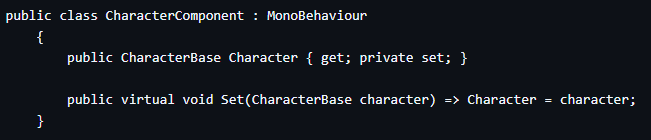
You can see how after the first line, there are added tabs that I don't need. How can I fix it? Using plain text copy/paste doesn't work.
Please sign in to leave a comment.
Hello,
Apologies for the late reply - this ticket slipped over our radar somehow.
I have tried this scenario on my end, and it works well. Rider does not modify the text on copy. Could you please check if you still have this issue on the latest Rider? If so, this may be related to how GitHub wiki renders space. To confirm this, please:
If the characters are identical but look different in GitHub wiki, it’s purely a rendering/tab-width issue on the wiki side.
Let me know your findings, and I’d be happy to assist further.
Thanks,
Tom
Hello, Tom. Thank you for your reply.
I repeated the steps you described and got the same result. I see weird tabs in Notepad++ and Windows 11 Notepad. Adding the screenshots. I write code using the usual hotkey for tabs (the Tab key) and with Rider's code formatting.
I am also adding a screenshot of how I selected this block of code before copying it.
I'm using Rider 2025.3.1.
Hello,
Thanks for the additional information. The problem occurs due to how the code is selected. To resolve this, please ensure you include the leading space on the first line when making your selection, as shown below:
If you need to perform this action frequently, you can use the “Extend Selection” feature (shortcut:
⌥ + ↑on macOS). See Handle caret and select text | JetBrains Rider Documentation for more information.Thanks,
Tom
Hello, Tom.
Yeah, it works better, but as expected, I have these tabs on the left.
I want to remove them. To do that I can press “Shift + Tab” twice in Notepad++, but I have to do this everytime I copy my code. I am writing documentation for my repository, and code examples will be very useful in it.
Is there anything I can do with Rider to improve copying? If so, please let me know.
Thank you
Hi Данило Скубрій
You can try the Column Selection Mode, which will let you select in Rider the code starting from the column where your cursor is, and when you paste in NotePad++, the previous tabs will not be pasted. Do the following:
Select the Column Selection Mode option
Then select the code block you need, checking that the longest line is covered
Here's the full article SUPPORT-A-3253 How to copy code from IntelliJ‑based IDEs without extra leading tabs into other text/code editor.
Hello. Thank you for your answer. It works, but it also copies empty spaces. Better than nothing, I will use that.
Is there a way to remove that?
Hi Данило Скубрій
You mean, blank spaces after the end of text in each line? Like the example below, where hyphens represent blanks and \n the line break, so if the original code is like in the example below, and you copy it, then it'll be pasted with exactly the same blanks:
And you need the same example to be pasted, like:
Is that right?
Hello, Monica. Yes, that's right
Hi Данило Скубрій
Unfortunately, there’s no setting or automated task that trims trailing spaces only on copy; text will preserve the whitespaces. So, I opened a feature request to address this gap, IJPL-237930. Please subscribe for further updates and upvote to increase its visibility.
As a workaround, you can use the Trim Leading and Trailing Spaces option in Notepad++, which may help. You can also assign a shortcut to this feature in Notepad++, so you'll have to perform just one click instead of two after pasting the code if you use the Column selection mode in Rider.
Thank you so much. I will wait for an update!